Macro Recording and Playback
Record browser interactions as reusable, editable macros. Macros capture semantic commands (click, fill, press) rather than raw mouse/keyboard events, making them human-readable and robust.
Quick Start
# Navigate to starting page
zchrome navigate https://example.com/login

# Start recording
zchrome cursor record login-flow.json
# Recording on port 4040... Press Enter to stop.
#   (browser connected)

# Interact with the page:
# - Click buttons, fill forms, press keys
# - Even reload pages - recording survives!

# Press Enter to stop
# Recorded 5 commands to login-flow.json

# Replay the recording
zchrome cursor replay login-flow.json --interval=500
Recording Commands
cursor record
Record browser interactions to a JSON macro file.
zchrome cursor record <filename.json>How it works:
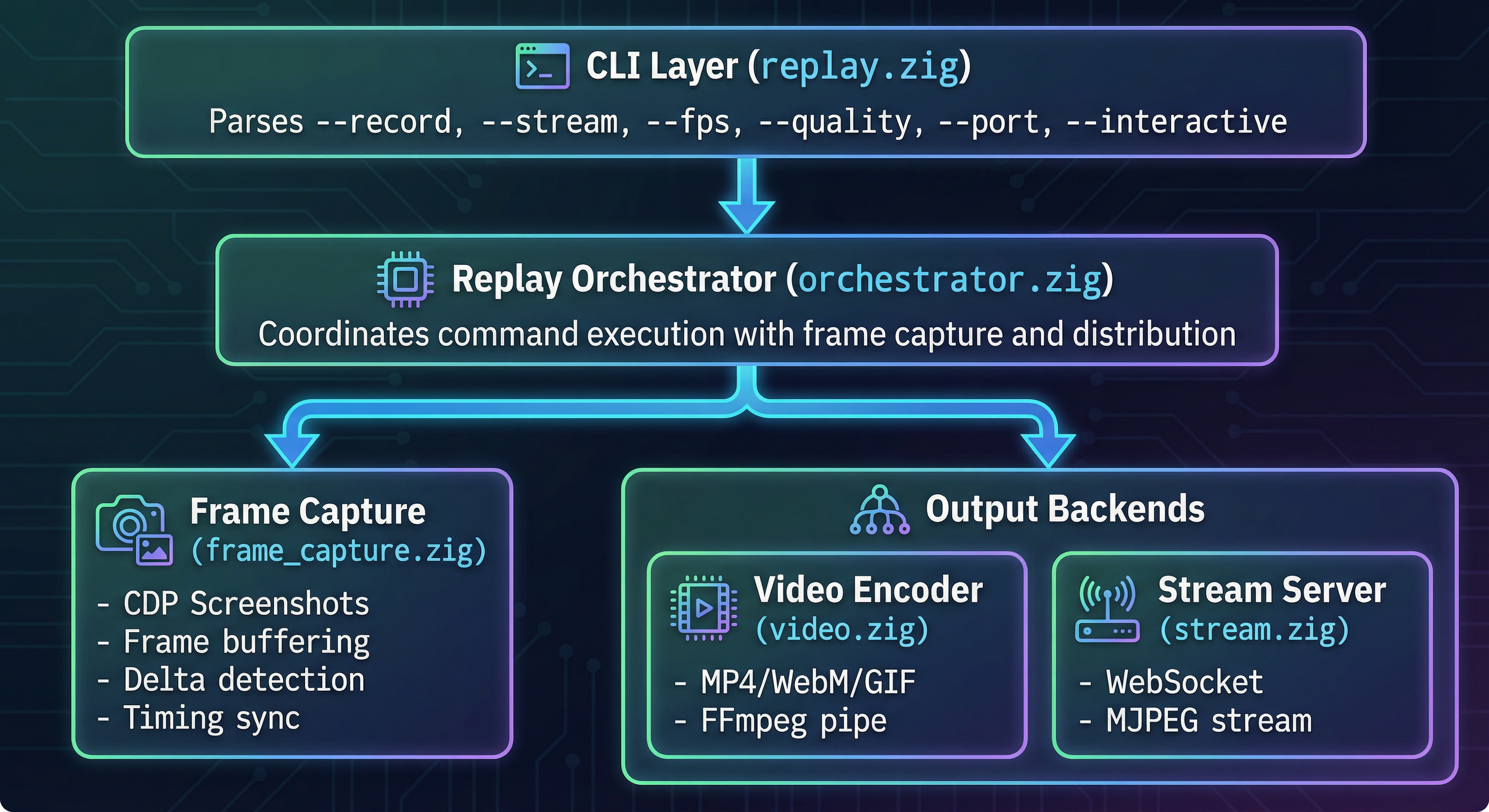
- Starts a WebSocket server on port 4040
- Injects JavaScript into the page via CDP
- Events stream in real-time as you interact
- Script auto-injects on page navigation (survives reloads)
- Press Enter to stop recording and save
Example:
zchrome cursor record checkout-flow.json
# Recording on port 4040... Press Enter to stop.
# (Events stream in real-time, survives page reloads)
#   (browser connected)
# [interact with the page...]
# Recorded 12 commands to checkout-flow.json
Macro File Format (Version 2)
Macros are stored as JSON with semantic commands:
{
  "version": 2,
  "commands": [
    {"action": "click", "selector": "#login-btn"},
    {"action": "fill", "selector": "#email", "value": "user@example.com"},
    {"action": "fill", "selector": "#password", "value": "secret123"},
    {"action": "press", "key": "Enter"},
    {"action": "wait", "selector": ".dashboard"},
    {"action": "click", "selector": ".settings-link"}
  ]
}
Fallback Selectors
For dynamic pages where elements may have different selectors, use the selectors array to specify fallbacks:
{
  "version": 2,
  "commands": [
    {
      "action": "click",
      "selector": "#submit-btn",
      "selectors": ["[data-testid='submit']", ".btn-primary", "button[type='submit']"]
    },
    {
      "action": "fill",
      "selector": "#email",
      "selectors": ["[name='email']", "[type='email']", ".email-input"],
      "value": "user@example.com"
    }
  ]
}
During replay, zchrome tries selectors in order:
selector(primary) - tried firstselectors[0],selectors[1], ... - fallbacks tried in order
This makes macros more robust across different page states or minor UI changes.
Supported Actions
| Action | Fields | Description |
|---|---|---|
click | selector, selectors? | Click an element |
dblclick | selector, selectors? | Double-click an element |
fill | selector, selectors?, value | Clear and fill input with text |
check | selector, selectors? | Check a checkbox |
uncheck | selector, selectors? | Uncheck a checkbox |
select | selector, selectors?, value | Select dropdown option by value |
multiselect | selector, selectors?, value | Select multiple options (value is JSON array string) |
press | key | Press a key (e.g., "Enter", "Tab", "Control+a") |
scroll | scrollX?, scrollY | Scroll the page (positive=down, negative=up) |
hover | selector, selectors? | Hover over an element |
navigate | value | Navigate to URL |
wait | selector or value | Wait for element, time (ms), or text |
upload | selector, selectors?, files | Upload files to a file input element |
dialog | accept, value? | Handle JavaScript dialog (see below) |
assert | See below | Test conditions with retry on failure |
extract | selector, mode?, output | Extract DOM data as JSON |
capture | selector, capture fields | Capture values into variables for comparison |
goto | file, params?, result_as? | Chain to another macro JSON file |
if | condition field, then_file?, else_file? | Conditional branching based on page state |
repeat | repeat_count or repeat_count_var, file | Count-based loop |
mark | value | Signal status (success/failed/skipped) for parent macro |
Note: selectors is an optional array of fallback CSS selectors tried if selector fails.
Selector Generation
The recorder generates multiple CSS selectors for robustness. It stores the best selector as selector and additional options in selectors:
Primary selector (most specific, tried first):
#id- Element ID (most reliable)[data-testid="..."]- Test ID attribute
Fallback selectors (tried if primary fails): 3. [name="..."] - Name attribute (for form inputs) 4. [aria-label="..."] - Accessibility label 5. [placeholder="..."] - Placeholder text 6. .unique-class - Unique CSS class 7. parent > tag:nth-of-type(n) - Structural fallback
Example recorded command:
{
  "action": "click",
  "selector": "#submit-btn",
  "selectors": ["[data-testid='submit']", "[name='submit']", ".btn-submit"]
}
Replaying Macros
cursor replay
Replay commands from a macro file with support for assertions and automatic retry on failure.
zchrome cursor replay <filename.json> [options]Options:
| Option | Description |
|---|---|
--interval=<ms> | Fixed delay between commands (default: 100ms) |
--interval=<min-max> | Random delay range (e.g., 100-300ms) |
--retries <n> | Number of retries on assertion failure (default: 3) |
--retry-delay <ms> | Wait time before retrying (default: 100ms) |
--fallback <file.json> | JSON file to execute on permanent failure |
--resume | Resume from last successful action |
--from <n> | Start replay from command index n |
Examples:
# Default 100ms between commands
zchrome cursor replay login-flow.json

# Slower, fixed 500ms delay
zchrome cursor replay login-flow.json --interval=500

# Human-like random delay
zchrome cursor replay login-flow.json --interval=200-500

# With custom retry settings
zchrome cursor replay form.json --retries 5 --retry-delay 2000

# With fallback on failure
zchrome cursor replay form.json --fallback error-handler.json

# Resume from last successful action
zchrome cursor replay form.json --resume
Output:
Replaying 5 commands from login-flow.json (interval: 200-500ms)...
  [1/5] click "#login-btn"
  [2/5] fill "#email" "user@example.com"
  [3/5] fill "#password" "secret123"
  [4/5] press Enter
  [5/5] wait ".dashboard"
Replay complete.
Assertions (Testing)
The assert action allows you to verify application state during replay. When an assertion fails, zchrome automatically retries from the last "action" command (click, fill, select, etc.) up to --retries times.
Assert Action Format
{
  "action": "assert",
  "selector": "#element",      // Element must exist and be visible
  "value": "expected",         // Optional: element text/value must match
  "attribute": "class",        // Optional: attribute to check
  "contains": "active",        // Optional: attribute must contain this
  "url": "**/dashboard",       // Optional: URL must match pattern
  "text": "Welcome",           // Optional: text must appear on page
  "timeout": 5000,             // Optional: wait up to N ms (default: 5000)
  "fallback": "error.json"     // Optional: run this macro if assertion fails
}
Assertion Types
Element exists:
{"action": "assert", "selector": "#success-message"}Element has value/text:
{"action": "assert", "selector": "#email", "value": "user@example.com"}Multiselect has selected values:
{"action": "assert", "selector": "#multi_select", "value": "[\"option1\", \"option3\"]"}Element has attribute:
{"action": "assert", "selector": "#btn", "attribute": "class", "contains": "active"}URL matches pattern:
{"action": "assert", "url": "**/dashboard"}Text visible on page:
{"action": "assert", "text": "Login successful"}Text with glob pattern (for dynamic content):
{"action": "assert", "text": "Record ID: *"}
{"action": "assert", "text": "Welcome, * to the dashboard"}
{"action": "assert", "text": "Order #* has been placed"}
Use * as a wildcard to match any characters. This is useful for asserting text that contains dynamic values like IDs, timestamps, or usernames.
Element count assertions:
{"action": "assert", "selector": "table#results tbody tr", "count": 5}
{"action": "assert", "selector": ".item", "count_min": 1}
{"action": "assert", "selector": ".item", "count_max": 10}
Use count for exact count, count_min for minimum, count_max for maximum. These can be combined.
With custom timeout:
{"action": "assert", "selector": ".slow-element", "timeout": 10000}With per-assertion fallback:
{"action": "assert", "text": "Email available", "fallback": "email-taken.json"}Retry Behavior
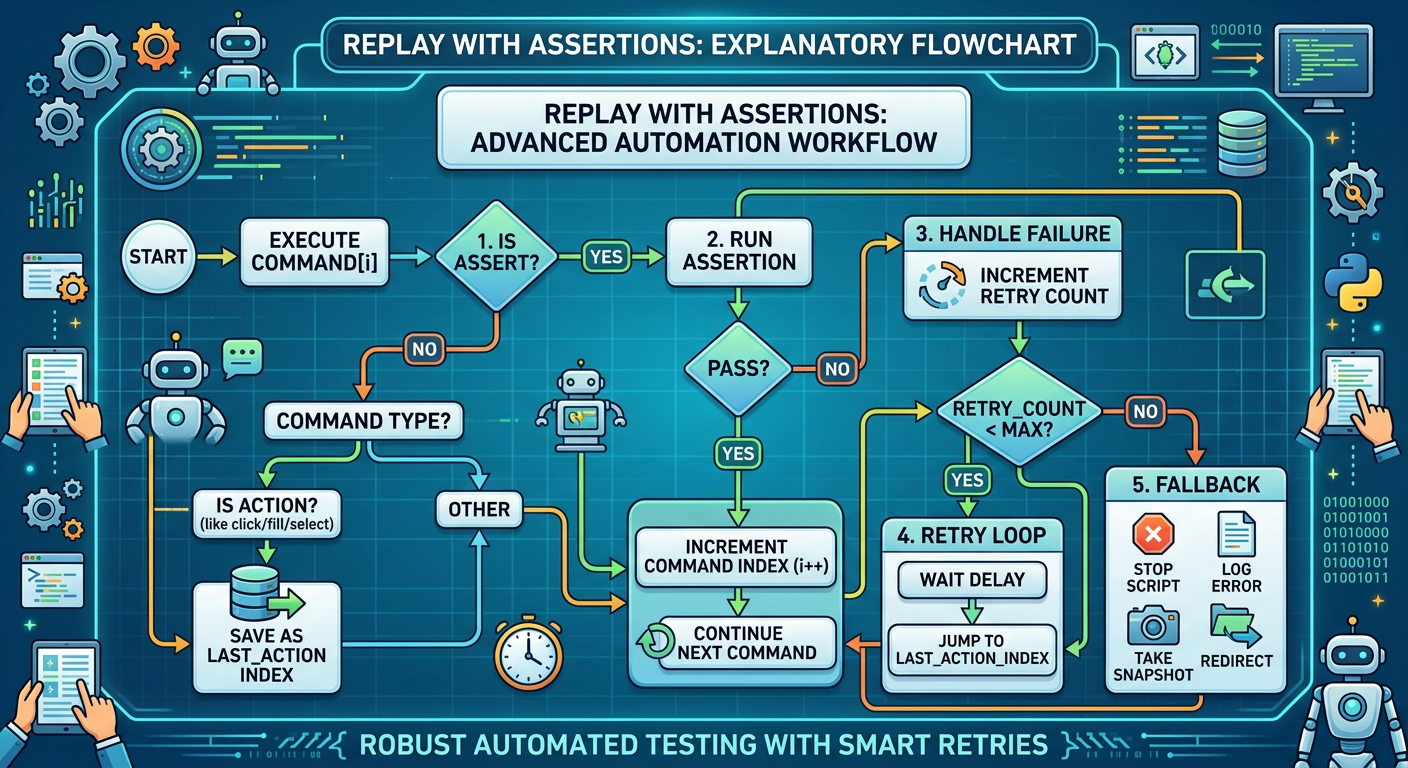
When an assertion fails:
- zchrome waits
--retry-delayms (default: 1000) - Finds the last action command (click, fill, select, check, etc.)
- Re-executes from that point (skipping press, wait, scroll)
- Repeats up to
--retriestimes
This ensures form interactions are re-done meaningfully, not just keypresses.
Fallback Priority
When an assertion permanently fails:
- Assert-level fallback: Uses
fallbackfield on the assert command - CLI fallback: Uses
--fallbackargument - Default: Stops replay and saves state for
--resume
Example: Form with Assertions
{
  "version": 2,
  "commands": [
    {"action": "fill", "selector": "#email", "value": "test@example.com"},
    {"action": "assert", "selector": "#email", "value": "test@example.com"},
    {"action": "fill", "selector": "#password", "value": "secret123"},
    {"action": "click", "selector": "#submit"},
    {"action": "assert", "url": "**/dashboard", "timeout": 10000},
    {"action": "assert", "text": "Welcome back"}
  ]
}
Output with passing assertions:
Replaying 6 commands from form.json (retries: 3, delay: 1000ms)...
  [1/6] fill "#email" "test@example.com"
  [2/6] assert "#email" ✓
  [3/6] fill "#password" "***"
  [4/6] click "#submit"
  [5/6] assert URL "**/dashboard" ✓
  [6/6] assert text "Welcome" ✓
Replay complete. All assertions passed.
Output with retry:
  [4/6] click "#submit"
  [5/6] assert URL "**/dashboard"
    ✗ Assertion failed (timeout 5000ms)
    Waiting 1000ms before retry...
    Retry 1/3: Re-executing from last action [4] click "#submit"
  [4/6] click "#submit"
  [5/6] assert URL "**/dashboard" ✓
Replay complete. 1 retry needed.
Snapshot Assertions
Compare DOM structure against a saved baseline file:
{"action": "assert", "selector": "#user-profile", "snapshot": "expected-profile.json"}This extracts the current DOM structure of the element and compares it to the JSON in the snapshot file. Useful for regression testing to catch unexpected DOM changes.
Creating a snapshot baseline:
Use the
extractaction to save the expected state:json{"action": "extract", "selector": "#user-profile", "output": "expected-profile.json"}Then use
snapshotassertions in subsequent runs:json{"action": "assert", "selector": "#user-profile", "snapshot": "expected-profile.json"}
Capture Action (Variables)
The capture action stores values into variables for later comparison. This enables "before/after" assertions.
Capture Modes:
| Field | Captures | Description |
|---|---|---|
count_as | Integer | Number of elements matching selector |
text_as | String | Text content of element |
value_as | String | Value of input/select element |
attr_as | String | Attribute value (requires attribute field) |
Example: Verify row count increased after form submission:
{
  "version": 2,
  "commands": [
    {"action": "capture", "selector": "table#results tbody tr", "count_as": "before"},
    {"action": "fill", "selector": "#name", "value": "John Doe"},
    {"action": "fill", "selector": "#email", "value": "john@example.com"},
    {"action": "click", "selector": "#submit"},
    {"action": "wait", "value": "1000"},
    {"action": "assert", "selector": "table#results tbody tr", "count_gt": "$before"}
  ]
}
Variable-Based Comparison Operators:
| Field | Type | Description |
|---|---|---|
count_gt | "5" or "$var" | Count greater than value or variable |
count_lt | "5" or "$var" | Count less than |
count_gte | "5" or "$var" | Count greater than or equal |
count_lte | "5" or "$var" | Count less than or equal |
text_eq | "text" or "$var" | Text equals value or variable |
text_neq | "text" or "$var" | Text not equals |
text_contains | "text" or "$var" | Text contains substring |
value_eq | "val" or "$var" | Input value equals |
value_neq | "val" or "$var" | Input value not equals |
Example: Verify text changed:
{"action": "capture", "selector": "#status", "text_as": "old_status"}
{"action": "click", "selector": "#refresh"}
{"action": "assert", "selector": "#status", "text_neq": "$old_status"}
Example: Capture attribute:
{"action": "capture", "selector": "#row-1", "attribute": "data-id", "attr_as": "row_id"}
{"action": "click", "selector": "#delete"}
{"action": "assert", "text": "Deleted row $row_id"}
Variables persist across --resume, allowing assertions to work correctly after retry.
Data Extraction
The extract action extracts DOM data as JSON during macro playback. Useful for scraping data after navigation/login.
Extract Action Format
{
  "action": "extract",
  "selector": "#element",        // CSS selector for target element
  "mode": "table",               // Extraction mode (default: "dom")
  "output": "data.json",         // Output file path
  "extract_all": true            // Optional: extract all matching elements
}
Extraction Modes
| Mode | Description | Output |
|---|---|---|
dom | Full DOM tree structure (default) | {"tag": "div", "attrs": {...}, "children": [...]} |
text | Text content only | "Hello world" or ["Item 1", "Item 2"] |
html | Raw innerHTML | "<span>content</span>" |
attrs | Attributes only | {"id": "main", "class": "container"} |
table | HTML table to objects | [{"Name": "Alice", "Age": "30"}, ...] |
form | Form field values | {"email": "a@b.com", "name": "John"} |
Extract Examples
Scrape table data:
{
  "action": "extract",
  "selector": "table#results",
  "mode": "table",
  "output": "scraped-data.json"
}
Get form values:
{
  "action": "extract",
  "selector": "form#checkout",
  "mode": "form",
  "output": "form-state.json"
}
Extract multiple elements:
{
  "action": "extract",
  "selector": ".product-card",
  "mode": "dom",
  "extract_all": true,
  "output": "products.json"
}
Full Workflow Example
Navigate to a page, login, and extract data:
{
  "version": 2,
  "commands": [
    {"action": "navigate", "value": "https://example.com/login"},
    {"action": "fill", "selector": "#email", "value": "user@example.com"},
    {"action": "fill", "selector": "#password", "value": "secret123"},
    {"action": "click", "selector": "#login-btn"},
    {"action": "assert", "url": "**/dashboard", "timeout": 10000},
    {"action": "navigate", "value": "https://example.com/data"},
    {"action": "wait", "selector": "table#results"},
    {"action": "extract", "selector": "table#results", "mode": "table", "output": "results.json"}
  ]
}
Multi-Branch Flows
Use per-assertion fallbacks for conditional flows:
{
  "version": 2,
  "commands": [
    {"action": "fill", "selector": "#email", "value": "test@example.com"},
    {"action": "click", "selector": "#check-email"},
    {"action": "assert", "text": "Email available", "fallback": "email-taken.json"},
    {"action": "fill", "selector": "#password", "value": "secret123"},
    {"action": "click", "selector": "#submit"},
    {"action": "assert", "text": "Account created", "fallback": "captcha-required.json"}
  ]
}
Generating Macro Templates
Instead of recording from scratch, you can generate a macro template from an existing DOM element using the dom macro command:
# Generate macro for a button
zchrome dom "#add_record" macro --output macro.json

# Generate macro for a form (auto-discovers inputs)
zchrome dom "#login-form" macro --output login.json

# Generate macro for a file upload
zchrome dom "#file-input" macro --output upload.json
The generator inspects the element and creates context-aware commands:
| Element Type | Generated Commands |
|---|---|
<button>, <a> | wait → click → assert |
<input type="text/email/password"> | wait → fill → assert |
<input type="checkbox"> | wait → check → assert |
<input type="radio"> | wait → check → assert |
<input type="file"> | wait → upload → assert |
<select> | wait → select → assert |
<form> (with inputs) | wait → commands for each input → click (submit) → assert |
<table> | wait → extract (table mode) |
Example: Generate macro for a login form
zchrome dom "#login-form" macro --output login.jsonOutput (login.json):
{
  "version": 2,
  "commands": [
    {"action": "wait", "selector": "#login-form"},
    {"action": "fill", "selector": "#username", "selectors": ["[name=\"username\"]", "input[type=\"text\"]"], "value": "TODO"},
    {"action": "assert", "selector": "#username", "selectors": ["[name=\"username\"]", "input[type=\"text\"]"]},
    {"action": "fill", "selector": "#password", "selectors": ["[name=\"password\"]", "input[type=\"password\"]"], "value": "TODO"},
    {"action": "assert", "selector": "#password", "selectors": ["[name=\"password\"]", "input[type=\"password\"]"]},
    {"action": "check", "selector": "#remember", "selectors": ["[name=\"remember\"]", "input[type=\"checkbox\"]"]},
    {"action": "assert", "selector": "#remember", "selectors": ["[name=\"remember\"]", "input[type=\"checkbox\"]"]},
    {"action": "click", "selector": "#submit-btn", "selectors": ["button[type=\"submit\"]"]},
    {"action": "assert", "selector": "#login-form"}
  ]
}
The generated template includes:
- Multiple fallback selectors for each element
- Assert after each input to verify state
- TODO placeholders for values to fill in
Edit the TODO values, then replay:
zchrome cursor replay login.jsonEditing Macros
One of the key benefits of semantic macros is that they're human-readable and editable. You can:
Add Wait Commands
Insert waits to make replay more reliable:
{"action": "click", "selector": "#submit"},
{"action": "wait", "selector": ".success-message"},
{"action": "click", "selector": "#continue"}
Wait Types
// Wait for element to be visible
{"action": "wait", "selector": "#loading-complete"}

// Wait for specific time (milliseconds)
{"action": "wait", "value": "2000"}

// Wait for text to appear
{"action": "wait", "value": "Welcome back"}
File Upload
Upload files to <input type="file"> elements during macro replay:
{
  "version": 2,
  "commands": [
    {"action": "click", "selector": "#upload-btn"},
    {"action": "upload", "selector": "#file-input", "files": ["document.pdf"]},
    {"action": "click", "selector": "#submit"}
  ]
}
Upload Action Format:
{
  "action": "upload",
  "selector": "#file-input",           // CSS selector for file input
  "selectors": ["input[type=file]"],   // Optional: fallback selectors
  "files": ["file1.pdf", "file2.txt"]  // Array of file paths
}
Features:
- Supports multiple files in a single upload
- Accepts both relative and absolute file paths (relative paths are resolved from current working directory)
- Works with fallback selectors for dynamic pages
- Uses the same underlying mechanism as the CLI
uploadcommand
Examples:
// Single file upload
{"action": "upload", "selector": "#photo", "files": ["profile.jpg"]}

// Multiple files
{"action": "upload", "selector": "#attachments", "files": ["doc1.pdf", "doc2.pdf", "image.png"]}

// With fallback selectors
{
  "action": "upload",
  "selector": "#file-upload",
  "selectors": ["input[name='file']", "input[type='file']"],
  "files": ["report.xlsx"]
}

// Absolute path
{"action": "upload", "selector": "#import", "files": ["C:\\Users\\name\\data.csv"]}
Note: The upload action only selects the files on the input element. Use a subsequent click action on the submit button if you need to submit the form.
Dialog Handling
Handle JavaScript dialogs (alert, confirm, prompt) during macro replay. Place the dialog action after the action that triggers the dialog:
{
  "version": 2,
  "commands": [
    {"action": "click", "selector": "#show-alert"},
    {"action": "dialog", "accept": true},
    {"action": "click", "selector": "#show-confirm"},
    {"action": "dialog", "accept": false},
    {"action": "click", "selector": "#show-prompt"},
    {"action": "dialog", "accept": true, "value": "my input"}
  ]
}
Dialog Action Format:
{
  "action": "dialog",
  "accept": true,           // true = accept, false = dismiss
  "value": "prompt text",   // Optional: text for prompt dialogs
  "text": "Expected message"  // Optional: verify dialog message
}
Asserting Dialog Messages:
You can verify the dialog message matches an expected value:
{"action": "dialog", "accept": true, "text": "Are you sure you want to delete?"}Pattern Matching for Dynamic Dialog Messages:
Use * as a wildcard to match dynamic content in dialog messages:
{"action": "dialog", "accept": true, "text": "Data saved. Record ID: *"}
{"action": "dialog", "accept": true, "text": "Order #* confirmed"}
{"action": "dialog", "accept": true, "text": "Welcome, *!"}
This is useful when the dialog contains dynamic values like record IDs, timestamps, or usernames that change between runs.
How It Works:
The macro replay system buffers CDP events, so when a click triggers a dialog:
- The click action executes
- Chrome fires
Page.javascriptDialogOpeningevent (buffered) - The dialog action retrieves the buffered event
- Dialog is handled immediately
TIP
Unlike the CLI dialog command, macro replay doesn't need to wait for dialogs because events are buffered during replay.
Macro Chaining (goto)
Split complex flows across multiple macro files and chain them together using the goto action. When replay encounters a goto, it loads and replays the target file before continuing.
Goto Action Format:
{
  "action": "goto",
  "file": "next-step.json"    // Path to the next macro file
}
Example: Multi-step form flow
Break a long registration flow into separate files:
step1-account.json:
{
  "version": 2,
  "commands": [
    {"action": "fill", "selector": "#email", "value": "user@example.com"},
    {"action": "fill", "selector": "#password", "value": "secret123"},
    {"action": "click", "selector": "#next"},
    {"action": "assert", "url": "**/profile"},
    {"action": "goto", "file": "step2-profile.json"}
  ]
}step2-profile.json:
{
  "version": 2,
  "commands": [
    {"action": "fill", "selector": "#firstName", "value": "John"},
    {"action": "fill", "selector": "#lastName", "value": "Doe"},
    {"action": "click", "selector": "#submit"},
    {"action": "assert", "text": "Registration complete"}
  ]
}# Replay the entire flow starting from step 1
zchrome cursor replay step1-account.jsonBenefits:
- Reusable steps — share common flows (e.g., login) across test suites
- Easier maintenance — edit one step without touching others
- Composable — mix and match steps for different scenarios
Modify Values
Change form values without re-recording:
// Before
{"action": "fill", "selector": "#email", "value": "old@example.com"}

// After
{"action": "fill", "selector": "#email", "value": "new@example.com"}
Add Navigation
Insert page navigations:
{"action": "navigate", "value": "https://example.com/settings"}Change Selectors
Update selectors if page structure changed:
// Before (ID was removed)
{"action": "click", "selector": "#old-button-id"}

// After (use class instead)
{"action": "click", "selector": ".submit-button"}

// Or add fallbacks for robustness
{
  "action": "click",
  "selector": ".submit-button",
  "selectors": ["[type='submit']", "form button:last-child"]
}
Use Cases
Login Automation
# Record login once
zchrome navigate https://app.example.com/login
zchrome cursor record login.json
# [enter credentials, click login, wait for dashboard]

# Replay anytime
zchrome navigate https://app.example.com/login
zchrome cursor replay login.json --interval=300
Form Testing
# Record form submission
zchrome cursor record signup-form.json

# Edit the JSON to test different values
# Then replay with variations
zchrome cursor replay signup-form.json
E2E Test Scripts
# Record a user flow
zchrome cursor record checkout-flow.json

# Add wait commands for reliability
# Edit JSON: add {"action": "wait", "selector": ".cart-loaded"}

# Replay as part of test suite
zchrome cursor replay checkout-flow.json --interval=100-200
Demo Recordings
# Record a product demo
zchrome cursor record demo.json

# Replay with slow timing for presentation
zchrome cursor replay demo.json --interval=1000-1500
Video Recording & Live Streaming
Record replay sessions as video files or stream them live for collaboration and review.
Recording to Video
Capture replay sessions as video files (MP4, WebM, or GIF):
# Record to MP4 (most compatible)
zchrome cursor replay demo.json --record=demo.mp4

# Record with custom settings
zchrome cursor replay demo.json --record=demo.webm --fps=15 --quality=90

# Record as GIF (for quick sharing)
zchrome cursor replay demo.json --record=demo.gif
Recording Options:
| Option | Description |
|---|---|
--record=<path> | Output file path (format detected from extension) |
--fps=<n> | Frames per second (default: 10, max ~15 due to screenshot overhead) |
--quality=<0-100> | Video quality (default: 80) |
Supported Formats:
| Format | Extension | Use Case |
|---|---|---|
| MP4 | .mp4 | Best compatibility, recommended for sharing |
| WebM | .webm | Web-optimized, smaller files |
| GIF | .gif | Quick previews, embeddable anywhere |
Requirements: FFmpeg must be installed and in your PATH.
Live Streaming
Stream replay sessions in real-time for collaboration or remote viewing:
# Start streaming on default port 8080
zchrome cursor replay demo.json --stream

# Stream on custom port
zchrome cursor replay demo.json --stream --port=9000
Open http://localhost:8080/ in any browser to watch the stream.
Stream Features:
- MJPEG over HTTP - Works in any browser via
<img>tag - WebSocket support - Lower latency for interactive mode
- Multiple viewers - Share the URL with team members
Interactive Mode
Allow remote viewers to interact with the page during replay:
zchrome cursor replay demo.json --stream --interactiveIn interactive mode, viewers can:
- Click on elements (coordinates are scaled to match the original viewport)
- Type keys (forwarded to the browser)
This is useful for:
- Remote pair programming
- QA team collaboration
- Live demos with audience participation
Combined Recording & Streaming
Record and stream simultaneously:
zchrome cursor replay demo.json --record=demo.mp4 --stream --port=8080Example: Demo Video Workflow
# 1. Record your interaction
zchrome cursor record workflow.json

# 2. Edit the macro to add waits and polish timing
# (edit workflow.json)

# 3. Record to video with slow, presentable timing
zchrome cursor replay workflow.json --record=demo.mp4 --interval=800 --fps=15

# 4. Or live stream for team review
zchrome cursor replay workflow.json --stream --interval=500
Tips
Reliable Recordings
- Add waits after actions that trigger async operations
- Use specific selectors - IDs and data-testid are most reliable
- Test on clean state - replay from the same starting page
Debugging Failed Replays
# Use slow interval to watch what happens
zchrome cursor replay macro.json --interval=2000

# Take screenshots during replay to debug
# (manually or add to macro)
Selector Best Practices
- Prefer
#idor[data-testid="..."]for stability - Avoid nth-of-type selectors when possible (brittle)
- Test selectors in browser DevTools first
- Use fallback
selectorsarray for dynamic pages where elements may change - The recorder automatically generates fallbacks - review and edit if needed
Legacy Format (Version 1)
Version 1 macros contain raw events (mouseMove, keyDown, etc.) and are still supported for backward compatibility. They replay with original timing.
{
  "version": 1,
  "events": [
    {"type": "mouseMove", "timestamp": 0, "x": 100, "y": 200},
    {"type": "mouseDown", "timestamp": 50, "x": 100, "y": 200, "button": "left"},
    {"type": "mouseUp", "timestamp": 100, "x": 100, "y": 200, "button": "left"}
  ]
}
To convert to version 2, re-record the interaction - semantic commands are more maintainable.
Data Store Workflows
For scraping and automation workflows that need to collect data across multiple runs and iterate over saved data.
Append Mode with Deduplication
The extract action supports appending to existing JSON files with automatic deduplication:
{
  "action": "extract",
  "selector": ".user-card",
  "mode": "dom",
  "extract_all": true,
  "output": "data/users.json",
  "append": true,
  "key": "attrs.data-user-id"
}
Fields:
append: Whentrue, new items are added to existing JSON array instead of overwritingkey: Path to unique field for deduplication (e.g.,attrs.data-user-id,id,email)
If key is specified, items with duplicate key values are skipped.
Load Action
Load a JSON file into a variable for later use:
{"action": "load", "file": "data/users.json", "as": "users"}Fields:
file: Path to JSON file (relative to CWD)as: Variable name to store the data
The loaded data is available as $users in subsequent commands.
Foreach Action
Iterate over an array variable and run a macro for each item:
{
  "action": "foreach",
  "source": "$users",
  "as": "user",
  "file": "check-user.json",
  "on_error": "continue"
}
Fields:
source: Variable containing array (with$prefix)as: Loop variable namefile: Macro file to run for each itemon_error:"continue"(default) or"stop"
Variable Interpolation
Use $variable and $variable.field syntax in values:
{"action": "navigate", "value": "https://example.com/profile/$user.id"}
{"action": "extract", "output": "data/activity-$user.id.json", ...}
Supported in:
navigateURL valuesextractoutput paths
Complete Data Workflow Example
Step 1: Scrape users (scrape-users.json)
Run this daily to collect new users:
{
  "version": 2,
  "commands": [
    {"action": "navigate", "value": "https://example.com/users"},
    {"action": "wait", "selector": ".user-list"},
    {
      "action": "extract",
      "selector": ".user-card",
      "mode": "dom",
      "extract_all": true,
      "output": "data/users.json",
      "append": true,
      "key": "attrs.data-user-id"
    }
  ]
}
Step 2: Check all users (check-users.json)
{
  "version": 2,
  "commands": [
    {"action": "load", "file": "data/users.json", "as": "users"},
    {
      "action": "foreach",
      "source": "$users",
      "as": "user",
      "file": "check-single-user.json",
      "on_error": "continue"
    }
  ]
}
Step 3: Single user check (check-single-user.json)
{
  "version": 2,
  "commands": [
    {"action": "navigate", "value": "https://example.com/user/$user.attrs.data-user-id"},
    {"action": "wait", "selector": ".profile"},
    {
      "action": "extract",
      "selector": ".activity",
      "mode": "text",
      "output": "data/activity-$user.attrs.data-user-id.json"
    }
  ]
}
Running the workflow:
# Initial scrape
zchrome cursor replay scrape-users.json

# Check all users
zchrome cursor replay check-users.json

# Re-scrape (new users auto-appended, duplicates skipped)
zchrome cursor replay scrape-users.json
Supported Actions Summary
| Action | Purpose | Key Fields |
|---|---|---|
extract | Extract DOM data | selector, mode, output, append, key |
load | Load JSON into variable | file, as |
foreach | Iterate over array | source, as, file, on_error |
if | Conditional branching | if_exists, if_url, then_file, else_file |
repeat | Count-based loop | repeat_count, file |
Conditional Logic (if action)
Execute different macro files based on page state. The if action evaluates a condition and branches to then_file or else_file.
Condition Types
| Field | Description | Example |
|---|---|---|
if_exists | Element exists on page | "#login-btn" |
if_not_exists | Element doesn't exist | "#logged-in-indicator" |
if_text | Element text matches (use with contains or text_eq) | "#status" |
if_url | Current URL matches pattern (supports * wildcard) | "*/dashboard*" |
if_var | Variable value check (use with comparison fields) | "$count" |
Basic Examples
Check if logged in:
{
  "action": "if",
  "if_exists": "#logout-btn",
  "then_file": "skip-login.json",
  "else_file": "do-login.json"
}
Check URL pattern:
{
  "action": "if",
  "if_url": "*/login*",
  "then_file": "perform-login.json"
}
Check element text:
{
  "action": "if",
  "if_text": "#status",
  "contains": "logged in",
  "then_file": "dashboard-actions.json",
  "else_file": "login-flow.json"
}
Check variable value:
{
  "action": "if",
  "if_var": "$item_count",
  "count_gt": "0",
  "then_file": "process-items.json",
  "else_file": "empty-state.json"
}
Variable Comparison Fields
When using if_var, combine with these comparison fields:
| Field | Description |
|---|---|
count_gt | Greater than (integer) |
count_lt | Less than (integer) |
count_gte | Greater than or equal |
count_lte | Less than or equal |
text_eq | String equals |
text_neq | String not equals |
Workflow Example: Conditional Login
main.json:
{
  "version": 2,
  "commands": [
    {"action": "navigate", "value": "https://example.com"},
    {"action": "if", "if_exists": "#user-menu", "then_file": "go-to-dashboard.json", "else_file": "login.json"},
    {"action": "goto", "file": "perform-tasks.json"}
  ]
}login.json:
{
  "version": 2,
  "commands": [
    {"action": "click", "selector": "#login-link"},
    {"action": "fill", "selector": "#email", "value": "user@example.com"},
    {"action": "fill", "selector": "#password", "value": "secret"},
    {"action": "click", "selector": "#submit"},
    {"action": "assert", "selector": "#user-menu", "timeout": 10000}
  ]
}
Count-Based Loops (repeat action)
Execute a macro file multiple times using the repeat action.
Basic Format
{
  "action": "repeat",
  "repeat_count": 5,
  "file": "click-next.json"
}
Using Variables for Count
{
  "version": 2,
  "commands": [
    {"action": "capture", "selector": ".pagination .total", "text_as": "page_count"},
    {"action": "repeat", "repeat_count_var": "$page_count", "file": "scrape-page.json", "max_iterations": 100}
  ]
}
Automatic Loop Variables
Inside the repeated macro, these variables are automatically available:
| Variable | Description |
|---|---|
$_index | 0-based iteration index (0, 1, 2, ...) |
$_iteration | 1-based iteration number (1, 2, 3, ...) |
Example usage in scrape-page.json:
{
  "version": 2,
  "commands": [
    {"action": "extract", "selector": "table", "mode": "table", "output": "data/page-$_iteration.json"},
    {"action": "click", "selector": ".next-page"}
  ]
}
Safety Limits and Break Conditions
| Field | Description |
|---|---|
max_iterations | Maximum number of iterations (safety limit) |
break_if_exists | Stop loop if selector exists |
break_if_not_exists | Stop loop if selector doesn't exist |
Example: Pagination with stop condition
{
  "action": "repeat",
  "repeat_count": 100,
  "file": "scrape-and-next.json",
  "break_if_not_exists": ".next-page:not(.disabled)"
}
Enhanced foreach Loop
The foreach action now supports automatic loop variables and break conditions.
Loop Variables
Inside the foreach macro, these variables are available:
| Variable | Description |
|---|---|
$_index | 0-based index (0, 1, 2, ...) |
$_iteration | 1-based iteration (1, 2, 3, ...) |
$<as_name> | Current item from the array |
Example:
{
  "action": "foreach",
  "source": "$users",
  "as": "user",
  "file": "process-user.json"
}
In process-user.json, you have access to $user, $_index, and $_iteration.
Break Conditions
Stop iteration early based on page state:
{
  "action": "foreach",
  "source": "$items",
  "as": "item",
  "file": "process.json",
  "break_if_exists": "#rate-limit-warning",
  "max_iterations": 50
}
Enhanced Foreach Fields
| Field | Description |
|---|---|
source | Variable containing array ($varname) |
as | Loop variable name |
file | Macro to run for each item |
on_error | "continue" (default) or "stop" |
break_if_exists | Stop if selector exists |
break_if_not_exists | Stop if selector doesn't exist |
max_iterations | Maximum iterations (safety limit) |
Enhanced goto with Parameters
Pass variables to nested macros and capture their results.
Passing Parameters
{
  "action": "goto",
  "file": "login.json",
  "params": {
    "username": "test@example.com",
    "password": "secret123"
  }
}
In login.json, use $username and $password:
{
  "version": 2,
  "commands": [
    {"action": "fill", "selector": "#email", "value": "$username"},
    {"action": "fill", "selector": "#password", "value": "$password"},
    {"action": "click", "selector": "#submit"}
  ]
}
Variable references in params:
{
  "action": "goto",
  "file": "process-user.json",
  "params": {
    "user_id": "$current_user.id",
    "api_key": "$config.api_key"
  }
}
Capturing Results
Use result_as to capture whether the nested macro succeeded:
{
  "version": 2,
  "commands": [
    {"action": "goto", "file": "try-login.json", "result_as": "login_result"},
    {"action": "if", "if_var": "$login_result", "text_eq": "success", "then_file": "dashboard.json", "else_file": "retry-login.json"}
  ]
}
The result_as variable will be:
"success"- Macro completed or returnedmark success"failed"- Macro returnedmark failedor had an error"skipped"- Macro returnedmark skipped
Mark Action for Control Flow
Use mark inside nested macros to signal status:
{
  "version": 2,
  "commands": [
    {"action": "fill", "selector": "#email", "value": "$username"},
    {"action": "click", "selector": "#check-email"},
    {"action": "if", "if_exists": ".email-taken", "then_file": "mark-failed.json"},
    {"action": "mark", "value": "success"}
  ]
}mark-failed.json:
{
  "version": 2,
  "commands": [
    {"action": "mark", "value": "failed"}
  ]
}
Circular Include Detection
zchrome automatically detects and prevents circular includes. If macro A calls macro B which calls macro A, you'll see:
Error: circular include detected: macros/a.json
Call stack: macros/main.json -> macros/b.json -> macros/a.json -> macros/b.json
This prevents infinite loops and helps debug complex macro chains.
Complete Example: Multi-User Workflow
main.json - Load users and process each:
{
  "version": 2,
  "commands": [
    {"action": "load", "file": "data/users.json", "as": "users"},
    {
      "action": "foreach",
      "source": "$users",
      "as": "user",
      "file": "process-user.json",
      "on_error": "continue",
      "max_iterations": 100,
      "break_if_exists": "#maintenance-mode"
    }
  ]
}
process-user.json - Check login and perform action:
{
  "version": 2,
  "commands": [
    {"action": "navigate", "value": "https://example.com/user/$user.id"},
    {
      "action": "if",
      "if_not_exists": "#profile",
      "then_file": "skip-user.json"
    },
    {
      "action": "goto",
      "file": "collect-data.json",
      "params": {"user_id": "$user.id"},
      "result_as": "collect_result"
    },
    {
      "action": "if",
      "if_var": "$collect_result",
      "text_eq": "failed",
      "then_file": "log-failure.json"
    }
  ]
}skip-user.json:
{
  "version": 2,
  "commands": [
    {"action": "mark", "value": "skipped"}
  ]
}
Run with:
zchrome cursor replay main.json --interval=500